Wednesday, May 13, 2009
All My Tuts Bundled
Photobucket

I've been asked several times over the last year to package up my tutorials into word format, so here they are. There is 63 psp and 23 photoshop tuts, all with clear pictures and easy to follow instructions. Sometimes, it is just easier to follow a tutorial when it's beside you, rather than having to flip back and forth to a page on the net. So, if you are interested, you can purchase this pack by clicking the link below.

Click here to purchase this tut pack
 
posted by Shawna at 6:30 PM | Permalink | 1 comments
Tuesday, February 24, 2009
Problems with 4Shared
I've been hearing all over the net that people have been getting viruses from downloading things from 4shared. Since ALL of my freebies and tut supplies are hosted at my 4shared account, at this time, I would advise everyone to not download anything from my links untill I can figure out what to do about it. I do not want anyone to be getting any viruses or trojans from any of my links. I will let everyone know when I've figured out what I'm going to be doing.

Sorry for the inconvenience.

Shawna
 
posted by Shawna at 11:37 AM | Permalink | 2 comments
Monday, December 1, 2008
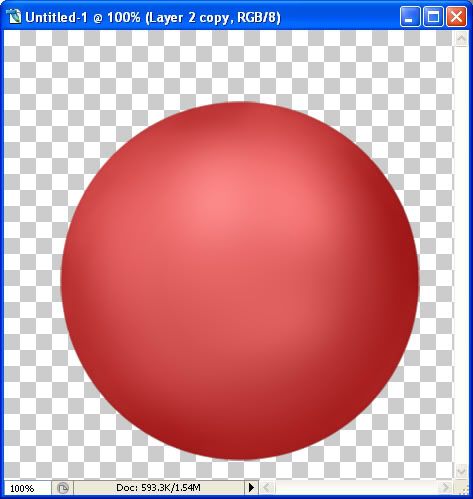
M&M's
Photobucket


1. Start out by opening a 300 by 300 transparent image.

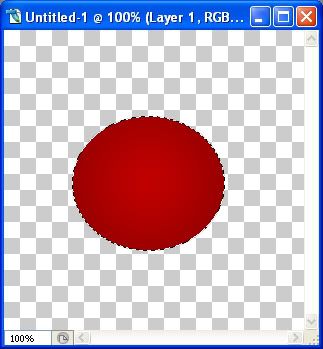
2. Click on your Elliptical Marquee tool on the left. Should be the very first tool in the tool bar.

3. Drag out your M&M shape onto your canvas, about the same size as in the picture below:

Photobucket

4. Set your foreground to C00000 and your background to 800000

5. Click on your Gradient tool on the left. It may be hidden behind the paint bucket tool, so if it is, right click on the paint bucket and click gradient.

6. Up along the top of your screen you will see what's called the gradient editor. It's the long rectangular box that is coloured. Click the down arrow on the right and choose the Foreground to Background preset, which should be the very first one.

7. Now beside the gradient editor, you'll see 5 squares, select the Radial option. Make sure your Opacity is 100 %, Reverse is unchecked, Dither and Transparency are both checked.

Now we are going to fill our shape with the gradient.

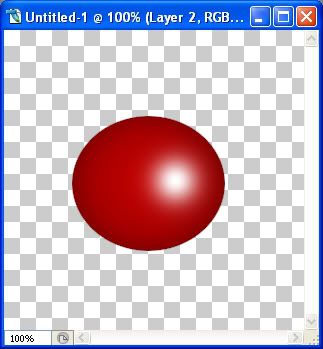
8. Hold down your Shift key, put your cursor in the center of the shape and click and drag from the center upwards, and when you get to just outside the circle, let go. This is what you should have now:

Photobucket

9. Go up to the Select tab at the top and choose Deselect.

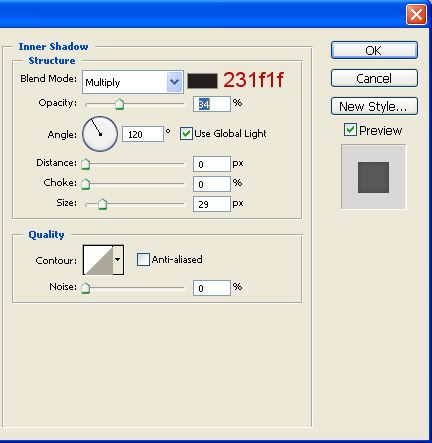
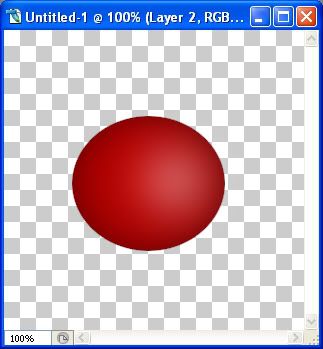
10. At the bottom of your Layer Palette, you will see the Add a Layer Style icon, it looks like a grey circle with an f in the middle. Click on that and from the flyout choose Inner Shadow and use these settings:
Photobucket

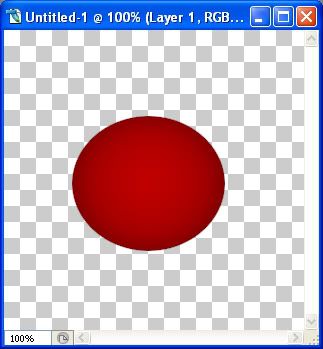
This is what yours should look like now:
Photobucket

11. Add a new layer by going up to the Layers tab at the top, then choose New, then Layer.

12. Change your foreground to white (ffffff).

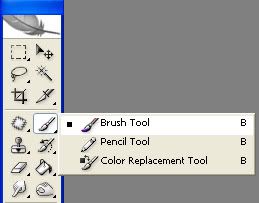
13. Click on your Brush tool on the left. If your brush tool isn't showing, right click the icon and choose Brush Tool.

Photobucket

14. Up at the top left of your screen you'll see the word Brush. Click the down arrow next to it and scroll through your brushes untill you find the one called Soft Round 65 pixels, and double click to select it.

15. Click once with your brush, near the center but off to the right a little. See picture below:

Photobucket

* Make sure that the white brush does is not too big. It should be small enough that it has space all around it and it's not close to the top, bottom or side. We are going to blur it and we don't want the white blur going outside of the M&M.

Now we are going to blur it a bit.

16. Go up to the Filter menu and choose Blur then Gaussian Blur. Set the Radius to about 23 and click OK.

This is what mine looks like now

Photobucket

17. Add a new layer by going up to the Layers tab, then to New, then to Layer.

18. Click on your Text tool on the left. From the font scroll menu, find Arial Black and select it. Set the size to 11-14.

* You may need to adjust the size of the font depending on the size of your M&M.

19. Click once in the middle of your M&M, and type out a small m.

20. Don't worry if it's not centered right now. If it's a good size and looks ok, then hit your enter key on your keyboard to accept it.

21. Click on your Mover tool on the left and with your cursor, move it into place if needed.

* You can use your arrow keys on your keyboard to nudge it one pixel at a time, but you must have your Mover tool selected to do that.

22. In the layer palette, above your "m" layer, to the right you will see Opacity. Change it from 100 to about 75.

23. If everything looks good, right click on one of the layers and choose Merge Visable.

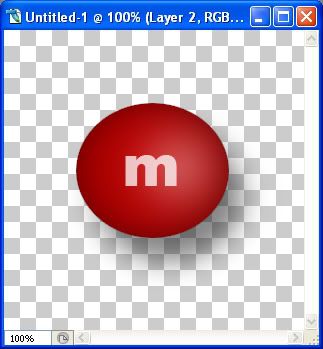
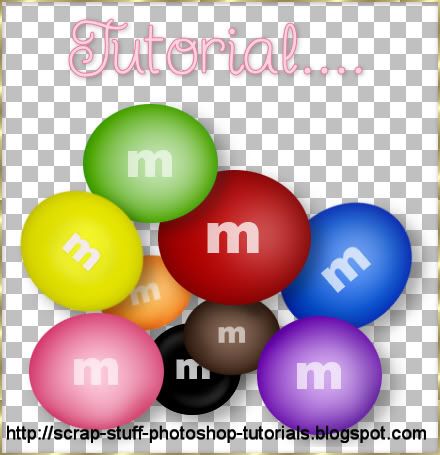
Here's what mine ended up looking like:

Photobucket

TOU:

If you do this tutorial, your end result is yours to do whatever you wish; give it away as a freebie, use it as part of a kit, or sell it for profit. You may not make this into an action or script to give away as a freebie or to sell for a profit. A mention or a link back here would be appreciated but is not mandatory. Please do not share the supplies or tut through email or any other means. If you are using this or any of my tutorials for your groups or as part of your own tutorial, please post a link to the tut on my blog and let your members download the supplies from my blog for themselves.
 
posted by Shawna at 1:59 AM | Permalink | 4 comments
Wednesday, November 26, 2008
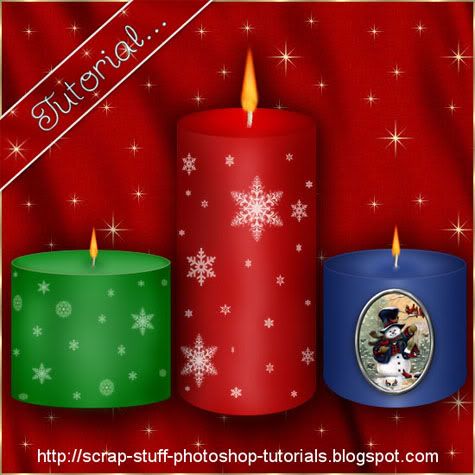
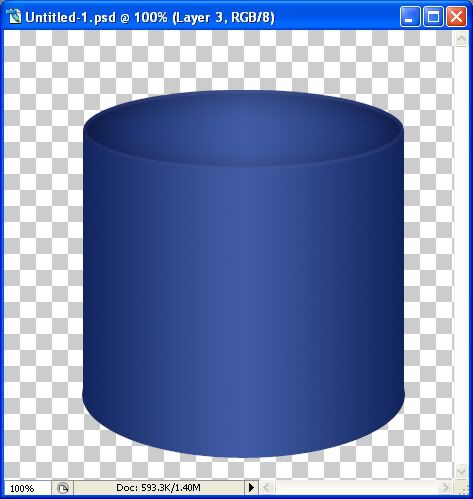
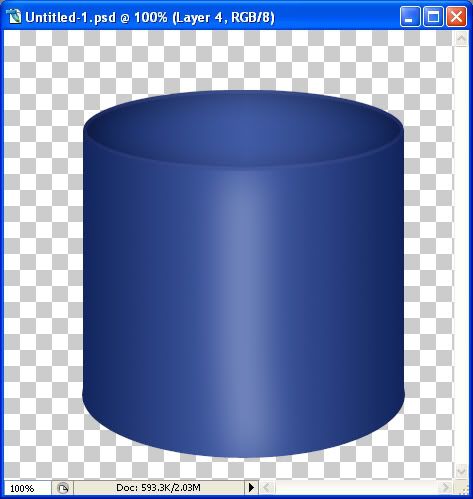
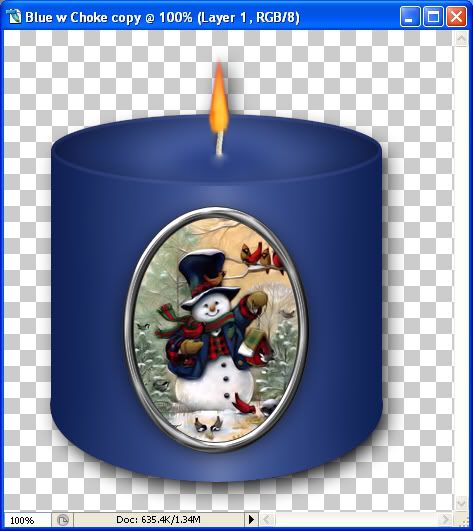
Christmas Candles
Photobucket


Supplies: Download Here


1. Open up a 500 by 500 transparent image.

2. Set your forground to black.

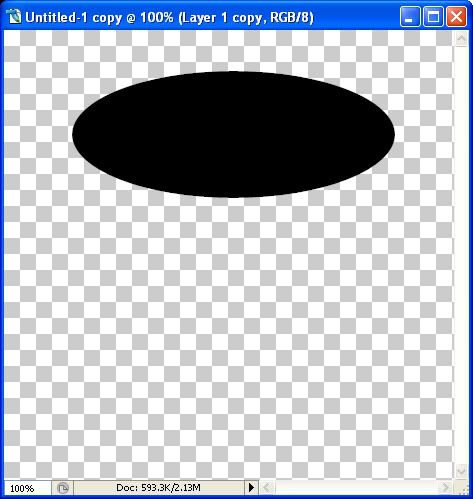
3. Click on your Custom Shapes tool on the left and set it to a basic circle. Drag out an oval for the top of your candle.

Photobucket

* If you don't have a basic circle, instead, click on your Elliptical Marquee tool and draw out an ellipse, then flood fill it with black. Then deselect from the selections tab.


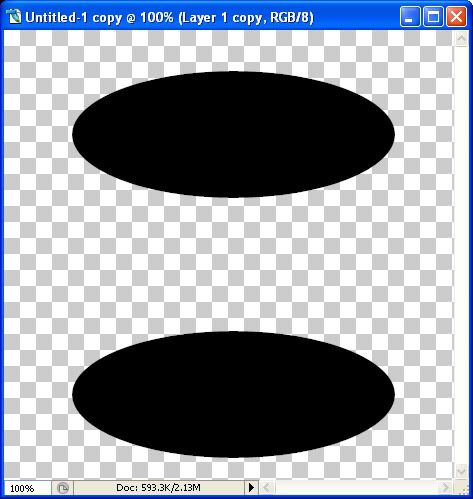
4. Duplicate this layer by right clicking on it in the layer palette and choose Duplicate Layer. Make sure you are not right clicking on the Icon, but on the layer itself.

5. Click on your Mover tool on the left to activate it, then use your down arrow key on your keyboard to move this second oval to the bottom of your canvas.

Photobucket

6. Click on your Custom Shape tool on the left and set it to a basic rectangle.

* If you don't have a rectangle, use the Rectangular Marquee tool on the left, draw it out, then fill with black and deselect.

7. Create a new layer by going to the Layers tab, choose New, then New Layer.

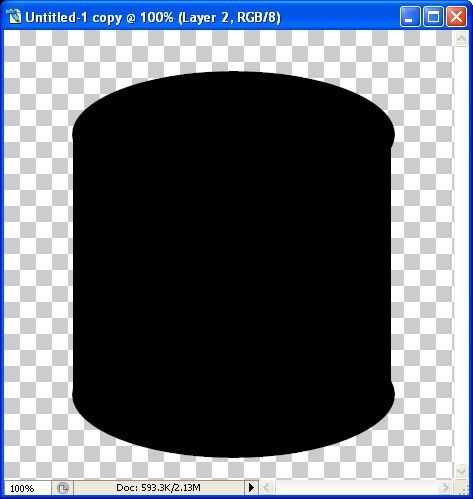
8. Draw out a rectangularish square that meets both ends of your 2 ovals.

Photobucket

* You'll notice that my square doesn't quite meet the right side of my 2 ovals like it does on the left. If you can't get yours to meet properly, hold down your Ctrl key on your keyboard and hit the t key. This will bring up a bounding box and you can click on the node and pull your square out. This gets tricky sometimes and won't pull to where you want it exactly, so if it goes past the ovals, leave it, and click on your Rectangular Marquee tool, select the portion that is over, then hit the Delete key on your keyboard.

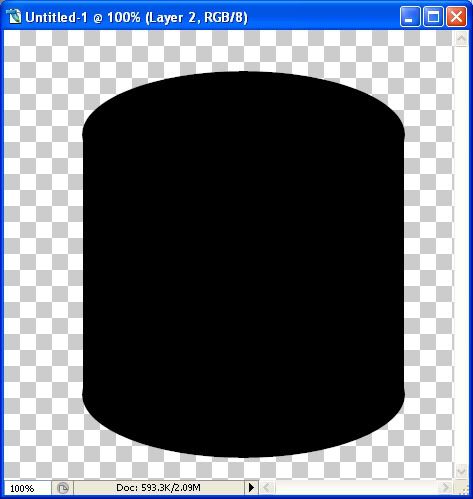
This is what you should have now:

Photobucket

9. Hide the top oval by clicking the eye icon next to it in the layer palette.

10. Right click on one of the 2 remaining layers and Merge Visable.

* Keep the top oval hidden for now.

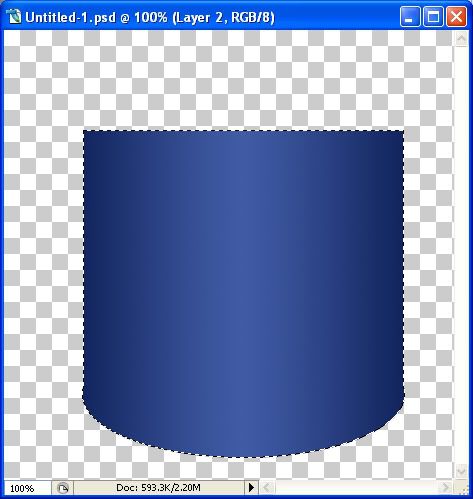
11. Hold down your Ctrl key on your keyboard and click on the ICON of the candle base in the layer palette. You'll get the marching ants all around it.

12. Make a new layer by going up to the Layer tab, over to New, then to Layer. This should be above your black base in the layer palette.

13. Set your foreground to a dark blue 081a50 and your background to a lighter blue 415ba5.

14. Click on your Gradient tool on the left. It may be hidden behind the Paint Bucket tool.

15. Now go up to the top of the screen and you'll see the blue gradient option. Click the down arrow beside it and choose the first gradient called foreground to background. Set the gradient style to Reflected Gradient, Mode is Nornal, Opacity is 100%, Reverse, Dither, and Transparency are all checked.

16. Working on your blank layer, put your cursor in the middle of your black candle base on your canvas, hold down your Shift key, drag left and stop when you get outside the marching ants on your canvas. This is what you should have now:

Photobucket

17. Go up to the Select tab and choose Deselect.

18. In the layer palette, right click on the black candle base layer and choose Delete Layer.

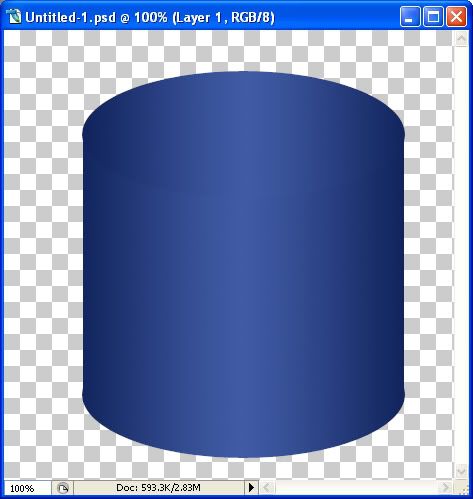
19. Unhide the top oval layer from the palette, hold down your Ctrl key and click on the icon to get the marching ants.

20. Make a new layer above it, ( layer tab, new, layer) and drag this layer to the top of the pile in the palette.

21. Click on your gradient tool and repeat step #16.

22. Deselect that layer from the Select tab.

23. In the layer palette, delete the black oval layer. This is where you should be now:

Photobucket

24. Working on your oval top layer, click on the layer style icon at the bottom of your palette. It looks like a grey circle with and f in the middle. Choose Inner Shadow and use these settings:

blend mode: luminosity, black for colour
opacity: 40%
angle: 120 and global light is checked
distance: 5
choke: 0
size: 35

25. Now click on Inner Glow on the left hand side and use these settings:

blend mode: screen
opacity: 30
noise: 0
colour: 4648bd

Elements:

technique: softer
source: edge
choke: 59
size: 5
and click OK

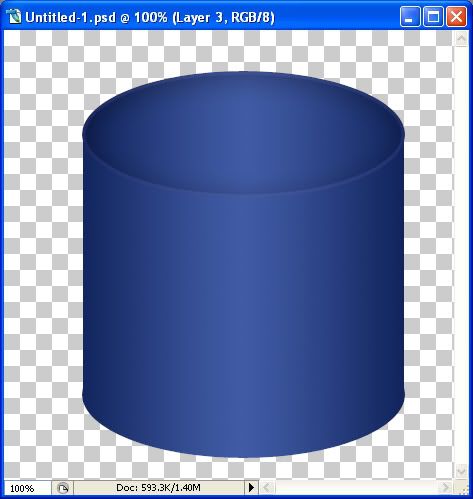
This is how it should look:

Photobucket

* Now, the top oval looks too large so we are going to scale it down a little.

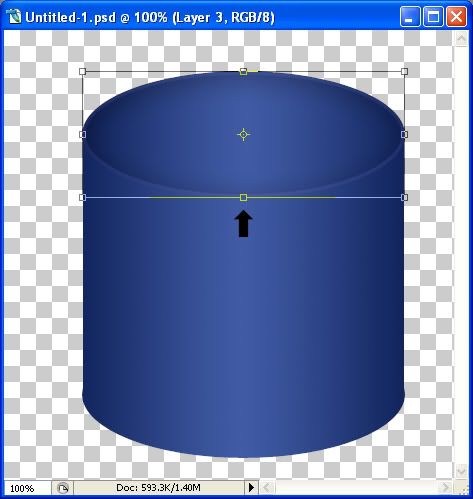
26. In the layer palette, click on the top oval to make it our active layer. Hold down the Ctrl key and then hit the t key on your keyboard. You will get a bounding box with square nodes on it.

Photobucket

27. Put your cursor on the node indicated by the arrow and drag it upwards untill it looks like the one in the picture below. You may need to drag it down a bit to fit back on your candle properly as well.

Photobucket

28. Make a new blank layer and drag it in between the top and candle base layers.

29. Set your foreground to white, and click on your Brush tool on the left, and set it to Soft Round 17 pixels.

30. Hold down your Ctrl key and click on the icon of the blue candle base layer in the palette. You'll have your marching ants around your candle base, but make sure the blank layer is the highlighted layer in the palette.

31. Hold down your Shift key and drag out a straight line with your brush from top to bottom in the middle of your candle.

32. Next, go up to the Filter tab, down to Blur, then to Gaussian Blur and set the Radius to 20.5 and click OK.

Photobucket

33. Open up SK Wick from the supplies folder, resize it in proportion to your candle (about 50%) and place it in the middle of your candle.

34. Click on your Eraser tool on the left, brush size about 13 and opacity around 16% and click once or twice around the bottom portion of the wick, till it's a little see through.
35. Use your paint brush to paint a little bit of blue over the bottom portion of the wick so it looks like it's blended into the candle itself. Do this on a new layer. You may want to try lowering the opacity of the paint layer a little.

36. Open up SK Flame from the supplies folder. With your Mover tool, drag it over onto the top of the wick.

37. Right click on one of the layers in the palette and Merge Visable.

38. Make a new layer and decorate with brushes, wordart, tubes, ect......

Photobucket

TOU:

If you do this tutorial, your end result is yours to do whatever you wish; give it away as a freebie, use it as part of a kit, or sell it for profit. You may not make this into an action or script to give away as a freebie or to sell for a profit. A mention or a link back here would be appreciated but is not mandatory. Please do not share the supplies or tut through email or any other means. If you are using this or any of my tutorials for your groups or as part of your own tutorial, please post a link to the tut on my blog and let your members download the supplies from my blog for themselves.
 
posted by Shawna at 3:34 PM | Permalink | 7 comments
Christmas Ball
Photobucket

Supplies: Download Here

** It is important that you DO NOT resize the ball template before you do this tutorial because we will be applying layer styles, and it will not turn out looking the same if resize beforehand. You can resize it after it is finished.


1. Open up SK Ball Template from the supplies zip.

2. Go up to the Image tab and choose Duplicate, click OK from the popup then close out your original Ball Template.

3. Add a new layer by going to the Layer tab at the top and click New, then Layer.

4. Set your foreground colour to 800000.

5. Click on your Paint Bucket tool on the left and fill your new layer with the red colour.

* Now we are going to use a very simple clipping mask to merge the red colour onto our round shape.

6. Hold down your Ctrl and the Alt key on your keyboard, and then hit the g key.

* You should now have a solid red circle on your canvas. And your layer palette should look like this.

Photobucket

7. Click once on the red layer to make it the active layer and then change the Blend Mode to Colour.

Photobucket

* This is what yours should look like now. Kind of a metalic rose colour.

Photobucket

8. Right click on one of the layers and from the flyout choose Merge Visable. Make sure not to right click on the icon, click on the layer itself.


* Some other time when doing this tut again, you can experiment by following these next 3 steps to give you different results.
~~~
Create a new layer above the merged layer ( Layer tab, New, then Layer) and fill it with the same red colour as before.
Create a Clipping Mask by holding down your Ctrl and Alt key and hitting the g on your keyboard.
Change the Blend Mode this time to Overlay, Lighten, or Soft Light, then merge visable. Experiment and see what looks good.
~~~


9. Hold down your Ctrl key and click once on the ICON of the merged ball in the layer palette.

* This creates a selection around your image and you should have marching ants all around your ball.

10. Duplicate this image by right clicking on the layer in the layer palette and choosing Duplicate Layer and click yes when you get the popup.

* You should now have 2 layers exactly the same in the layer palette.

11. Go up to the Filter tab at the top and down to Blur, then over to Gaussian Blur. In the Radius section, type in 20.00 and click OK.

12. Go up to the Select tab and choose Deselect. This is what you should have so far:

Photobucket

* Now it needs a bit of shading so we are going to add a layer style to the outter edges. Make sure the top duplicated copy is highlighted blue in your layer palette. Click it once if it isn't.

13. At the bottom of your layer palette, you will see an icon that looks like a grey circle with an f in the middle. Click on that, and from the flyout click on Inner Shadow. Change your settings to the same as in the picture below:

Photobucket

* Yours should now look like this:

Photobucket

14. In the layers palette, right click on one of the layers and choose Merge Visable.

* Now we are going to put a second burn on it.

15. Click the layer styles icon again at the bottom of the layer palette and choose Inner Shadow. Use the settings below:

Photobucket

* This is what yours should look like now:

Photobucket

16. Make a blank layer by going up to the Layer tab, then to New, then over to Layer and click OK at the popup.

17. Right click on one of the layers and choose Merge Visable.

* You'll notice that there was a little layer styles icon at the end of your ball layer but it is now gone. That's what merging the ball layer with the blank layer did.

18. You may need to expand your canvas in order to have enough room to put the topper on it, so go up to the Image tab and down to Canvas Size. In the New Size section, click the down arrow to the right of the Width and choose pixels. Change the Height to 650 pixels and click OK.

19. Open up SK Topper 01 from the supplies folder and use your Mover tool to drag it onto the top of your ball.

20. When it is placed where you want it, righth click on one of the layers and Merge Visable.

TOU:

If you do this tutorial, your end result is yours to do whatever you wish; give it away as a freebie, use it as part of a kit, or sell it for profit. You may not make this into an action or script to give away as a freebie or to sell for a profit. A mention or a link back here would be appreciated but is not mandatory. Please do not share the supplies or tut through email or any other means. If you are using this or any of my tutorials for your groups or as part of your own tutorial, please post a link to the tut on my blog and let your members download the supplies from my blog for themselves.
 
posted by Shawna at 3:17 PM | Permalink | 5 comments
Rainbow
Photobucket

Supplies: Download Here


1. Open up SK Greyscaled Strip from the supplies zip.

* You can use mine or you can use a swatch of your own, whether it is plain paper or a pattern, or several patterns. Just make the strip size somehwere around 1800 by 140.
2. Make as many duplicate copies of this strip for as many colours you want in your rainbow. 5 is usually a good number to have. Image tab, then to Duplicate, make 5 copies then colse out the original.

3. Next, we need to recolour them. Go up to the Layer tab, and down to New Adjustment Layer, then to Hue/Saturation and click ok.

4. Put a checkmark beside Colourize and if it's not there already, put one in Preview too so you can see the colour change to your image before you make a final decision.

5. Now, just move the sliders up and down untill you get a colour that your satisfied with.
6. Right click on one of the two layers in the layer palette and Merge Visable.

* Repeat this step on all of your strips. Here's what I chose:

Photobucket

7. Choose one of the strips to start working with and minimize all the others.

8. We need to select our entire image, so to do this you would hold down your Ctrl key on your keyboard and click once on the ICON of your strip in the layer palette.

9. Now we're going to contract the selection, so go up to the Select tab, then to Modify, then to Contract and put a 6 in there. Make it an even number or when you paste it back in, you will have a space.

10. Now go up to the Edit tab, and select Cut, then back to the Edit tab and select Paste.

* If needed, use the arrow keys on your keyboard to nudge your selection back into it's place.

11. Do this on each of your coloured strips.

12. Now, choose one of your strips to work on, i'm using the purple one, and make sure in the layer palette that the inner portion of the ribbon is highlighted and active.

13. Go down to the bottom of your layer palette and click on the Layer Style icon. It is the grey circle with the f in it. And then click on Inner Shadow and use the picture below for your settings:

Photobucket

Here's what mine looks like now:

Photobucket

14. You need to have the same layer style on each of your strips, but you don't have to keep going through the layer styles and doing it manually. On the first strip you put your layer style on, in the layer palette, right click on the icon at the end of your layer and choose Copy Layer Style.

15. Choose another of your strips, right click on the bigger inner ribbon and choose Paste Layer Style. Do this for each of your strips, and after copying the layer style, right click on one of the layers and choose Merge Visable.

16. Now we need a bigger canvas to place all our strips on, so open up an 1800 by 1800 transparent canvas.

17. Click on your Mover tool from the tool bar on the left, then drag each coloured strip onto your new canvas.

* If you want your rainbow colours to be in a specific order.... let's say you want blue on top then pink, then green. You would place the blue one on the bottom of the pile, below the others, then pink, then green ect.....

Here's mine. I had to shrink my pic down to fit on this page, so your image will look a bit different.

Photobucket

18. Once you have them placed, right click on one of the layers in the layer palette and Merge Visable.

* We are going to make this into one big circle using the polar coordinates function. What that is going to do is kind of scrunch and twist these straight lines into a circle and the 2 ends are going to meet with each other. But, we have some extra space on each of our ends and that is going to make a flat 12 pixel line right down the middle of our circle. We need to chop off the ends so that doesn't happen.

19. Click on the Rectangular Marquee tool on the tool bar on the left. Drag out a long rectangle like in the picture below. Make sure you get all of the coloured strips in the marquee rectangle then hit the Delete key on your keyboard and then do the other side:

Photobucket

20. Deselect by going up to the Select tab then to Deselect.

* Now you have a bit of space on the sides where we just cut it away. There can't be any space on either side or the next step won't work properly.
21.

21. Now, go up to the Filter tab, over to Distort, then to Polar Coordinates. Put the green dot in Rectangular to Polar and hit OK.

* You should now have a cute little circle out of your strips. Here's mine resized:

Photobucket

* We need to cut this in half, so grab your Rectangular Marquee tool from the left tool bar. You'll notice that on the top portion of your rainbow circle, you can see where our two ends meet. There's a slight dark line going down the middle of it. Well, we aren't going to use that yucked up part, we are going to use the bottom half which looks perfect.

22. Starting from the top left of your canvas, make a large selection over the top half of your circle and stop when you get to the middle. The part with the selection over it is going to be deleted, so look at the bottom half, which is going to be your actual rainbow and use that as a guide of where you stop your selection.

Photobucket

23. Hit the Delete key on your keyboard to get rid of the upper half, then go to the Select tab at the top and Deselect.

24. Now to flip this right side up, go to the Image tab, down to Rotate Canvas, and choose Flip Canvas Vertical. Here's the final product with a background and some clouds done the same way as the rainbow.

Photobucket

TOU:

If you do this tutorial, your end result is yours to do whatever you wish; give it away as a freebie, use it as part of a kit, or sell it for profit. You may not make this into an action or script to give away as a freebie or to sell for a profit. A mention or a link back here would be appreciated but is not mandatory. Please do not share the supplies or tut through email or any other means. If you are using this or any of my tutorials for your groups or as part of your own tutorial, please post a link to the tut on my blog and let your members download the supplies from my blog for themselves.
 
posted by Shawna at 2:57 PM | Permalink | 2 comments
Sunday, October 12, 2008
Flowers n Stems
Photobucket


Supplies: Download Here

I've supplied several different flower heads and stem pieces in the zip above, as well as, several paper swatches for you to use, but feel free to use your own.


1. Open up one of the flower heads from the supplies zip. I'm going to be using flower head 01 for this tutorial.

2. Go up to the Image tab and choose Duplicate, duplicate it again because we need 2 copies of this, then close out our original.

3. Open up a paper swatch from the zip file or use one of your own. I'm going to be using flower head paper 01.

4. Click on your Mover tool on the left, then in the layer palette, put your cursor on the ICON of the paper swatch and drag it over onto your flower head.

* You should have your paper swatch on top of your flower head in the layer palette.

5. Close out the paper from the zip, we no longer need it.

* Now, we are going to create what is called a Clipping Mask. It's going to mold the paper to the flower layer that is below it.

6. Make sure the paper layer is highlighted blue in the layer palette, hold down your Ctrl key on your keyboard, hold down your Alt key on your keyboard and then hit the g key.

* If you did it correctly, your flower shape now has the paper molded to it
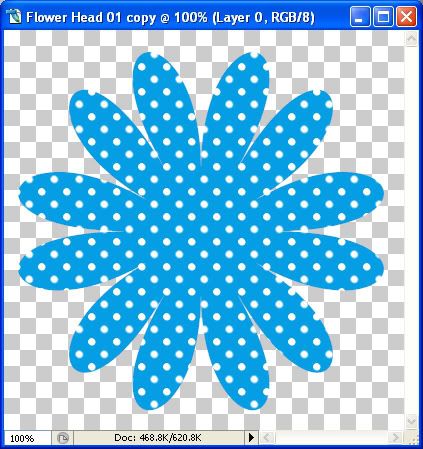
Photobucket

7. Right click on one of the layers in the layer palette and choose merge visable.

* Now we need to make the second black flower for the middle of this one smaller.

8. Click on your black flower to make it active, then go up to the Image tab at the top of your screen. Click on Image Size and put your settings like in the picture below:
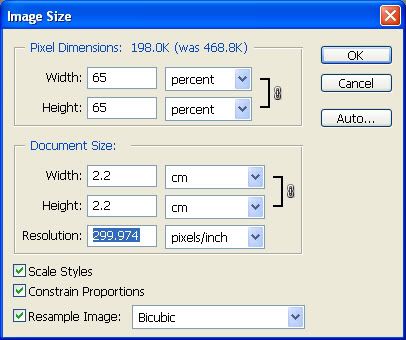
Photobucket

9. Open up flower head paper 04. Since we resized the flower to 65% of it's original size, let's do the same for the paper so that our design isn't too big.

10. Duplicate the paper layer ( image tab, image size, use same settings in above pic).

11. Click on your Mover tool and drag the paper over and onto your black flower canvas. Repeat step #6 to get the clipping mask for this flower.

12. Right click on one of the layers in the layer palette and Merge Visable.

13. Close out your resized paper layer.

* Now, let's give these 2 layers a flat bevel by using our layer style options. I have included the layer style in the supplies folder.

14. Click on your Blue flower layer in the palette to make it active. On the far right of your screen, you will see your Styles box. Click on the Styles tab if it isn't showing.
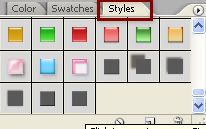
Photobucket

15. In my supplies folder, you will see SK Flower Head Blue for tut.asl, drag that into a blank space in your styles box. It should appear with all the other small square icons in there.

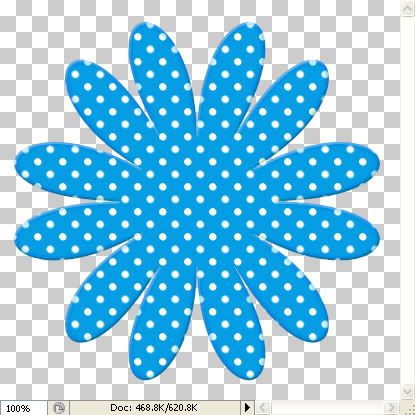
16. Now all you do is click on it and the bevel will appear on your blue flower. It should look like this:
Photobucket

17. Click on your smaller pink flower canvas to make it active. Then click on the same layer style as you did for the blue flower.

* You will notice that there is a blue outline to your pink flower now. Because this flower is so much lighter than our blue one, we need to go in and change the colours so....

18. At the bottom of your layer palette, you will see the Layer Style icon. It looks like a circle with an f in it. Click on that to bring it up and then click on Bevel and Emboss.

19. Leave everything as it is except click on the colour box at the bottom besied Hard Light. Change the colour number to 675847.

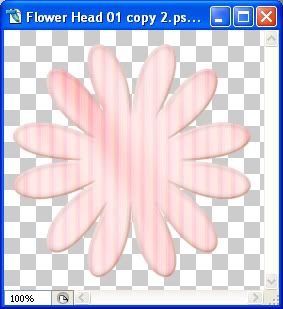
20. Now click on Inner Glow and click the greyish brown colour box under Noise and change the colour number to 6b6460 and click OK. Yours should look like this:
Photobucket

* We are going to drag our small pink flower on top of our larger flower, but we need to merge the layer style with it's flower first.

21. In the layer palette, on your flower layer, you will see the layer style icon (a circle with an f in the middle). Right click on the icon and from the flyout choose Create Layers.

22. Right click on one of the layers and choose Merge Visable.

23. Click on your other flower and do the same to it.

24. Now click on your Mover tool and drag the smaller flower on top of your larger flower.

25. I want to rotate my pink flower a little bit so hold down the Ctrl key and hit the letter t on your keyboard.

26. You'll see a bounding box over your canvas. Hold your cursor above the top right corner of the bounding box untill you see a bent double arrow. Then, just drag downward to rotate it as much as you want. When done, hit the Enter key on your keyboard.

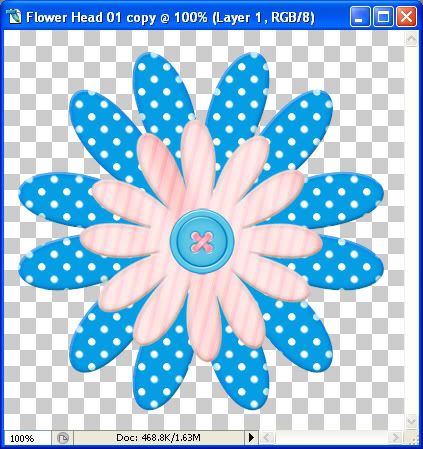
* I've chosen to put a button in the middle of my flower, you can put a bow, bead, or anything you choose. The buttons can be found in my Little Girl at Heart kit on my blog HERE. Here's what mine looks like so far:
Photobucket

* Now we need to make the stem.

27. Open up a new transparent image that is 500 pixels wide by 800 pixels long.

* In the bottom left corner of your new canvas, change 66.7% too 100% and move the canvas to the top of your screen and drag it out untill you can see the whole canvas.

28. From the supplies folder, open up SK Stems.png

29. Click on your Rectangular Marquee Tool and draw out a rectangle over one of the stems that you want to use. I've chosen the 3rd one.

30. Go up to the Edit tab and choose Copy, then click on your new canvas and go up to the Edit tab again and click Paste. Close out the stem png file.

* Use your Mover tool to shift the stem down on the page.

31. Open up one of the green stem papers from the supplies folder. I'm going to be using sk stem paper 01.

32. With your Mover tool, drag it onto our stem canvas. Don't close it out yet. We need it for the leaves too.

* This is optional, but I'm going to put a small texture on my green paper.

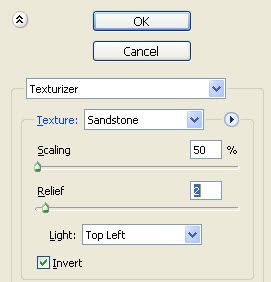
33. Go up to the Filter tab and then down to Texture and choose Texturizer, and change your settings to the same as the picture below:
Photobucket

34. Mold your paper layer with your black stem layer by holding down the Ctrl key and the Alt key and then hit the g key on your keyboard.

35. Right click and Merge Visable your 2 layers.

36. Give it the same Layer Style as you gave the flowers by clicking on it in the Styles box.

37. Again, we need to change the colours, so in the Inner glow section, I changed the colour to a dark green 3a5f37, lowered the Opacity to 42%, and changed the Size to 6. In the Bevel and Emboss section, I left everything the same except I changed the colour to a dark brown 3c2e20. Here's what I ended up with:
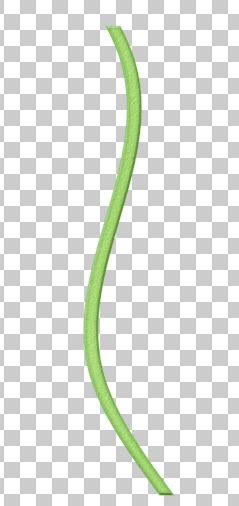
Photobucket

* Now we are going to do the leaves, but since we are going to use the same colours and bevel as we did on the stem, I'm just going to copy the layer style to my clipboard, cause i'm feeling lazy and don't wanna redo them separately.

38. In the layer palette, right click on the icon at the end of your layer and choose Copy Layer Style.
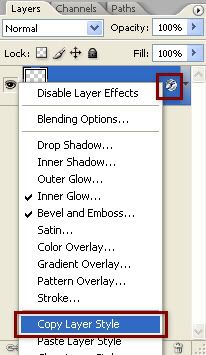
Photobucket

39. In the layer palette again, right click on the icon and choose Make Layers, then Merge Visable all your stem layers.

40. Open up a leave from the supplies folder. I'll be using leaf 01.

41. Duplicate it and close out the original.

42. It's a bit big for our flower so go up to the Image tab at the top and choose Resize and resize it by 50%.

43. You still have your green paper open from earlier, so drag it onto your leaf canvas and put the same texture on it from Step #33.

* Close out the green paper swatch.

44. Hold down the Ctrl and Alt key and hit the g key on your keyboard.

45. Merge Visable those two layers.

46. Right click on the leaf layer in the layer palette and choose Paste Layer Style.

* Your leaf should now have the same bevel as your stem.

47. Right click on the icon at the end of your leaf layer and choose Create Layers, then Merge Visable the leaf layers.

48. Drag one leaf onto your canvas and position it touching the stem. You can hold your cursor above the bounding box till you see the bent double arrow to rotate it how you want it. Use your arrow keys on your keyboard to nudge it into place.

49. Drag another leaf onto your stem canvas. Go up to the Edit tab, then to Transform, then down to Flip Horozontal and this will mirror your leaf. Rotate and nudge your leaf into place. Here's mine so far:
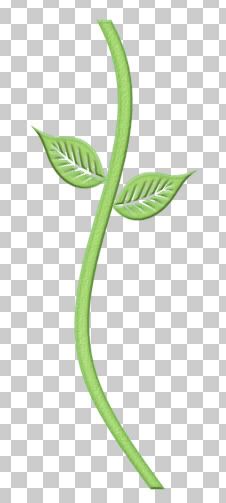
Photobucket

50. Right click and merge visable your leaves and stem.

* We haven't yet put any drop shadows on our flower layers to separate them, so let's do that now.

51. Click on the pink flower in the layer palette to make it active. Click on the Layer Style icon at the bottom of the layer palette and choose Drop Shadow.

* I left everything at it's default settings, but turned down the opacity to 28%. Click OK.

52. For the drop shadow on the button, leave it at it's defaults but change the opacity down to 52, distance to 1, and size to 9 and hit OK. Here's what mine looks like now:
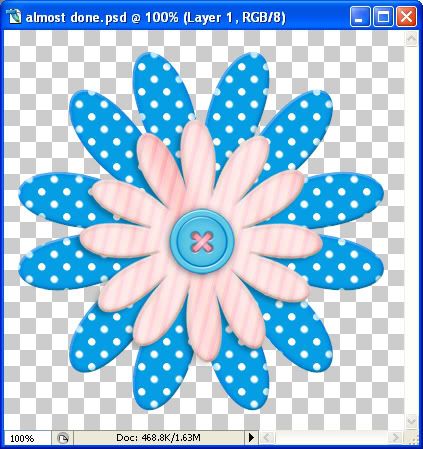
Photobucket

53. Right click in the layer palette and Merge Visable your layers.

54. Drag the flower onto your stem canvas and nudge it into place

55. Right click and Merge Visable your 2 layers.

We're done yaaaaaaaaaay.
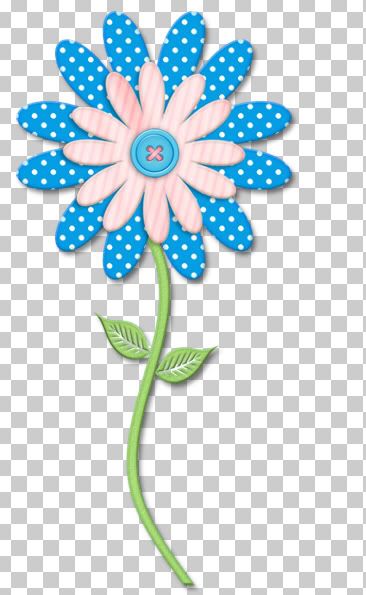
Photobucket

56. You can resize your flower by going to the Image tab, then to Resize and changing the percentage to something smaller.

TOU:

If you do this tutorial, your end result is yours to do whatever you wish; give it away as a freebie, use it as part of a kit, or sell it for profit. You may not make this into an action or script to give away as a freebie or to sell for a profit. A mention or a link back here would be appreciated but is not mandatory. Please do not share the supplies or tut through email or any other means. If you are using this or any of my tutorials for your groups or as part of your own tutorial, please post a link to the tut on my blog and let your members download the supplies from my blog for themselves.
 
posted by Shawna at 1:16 AM | Permalink | 11 comments
Magic Wands
Photobucket


This tut is made in Photoshop CS2. It requires you to have Image Ready, which is supplied with PS CS2, but I am not sure about other versions. You also need Super Blade Pro.

** Edited: I've included the layer style into the zip file for those who can't use Image Ready. The supply zip has been reuploaded.

Supplies:

SK Wand
Gold SBPro Setting -- Place the two .bmp's and the IsbGold017.q5q file into your environments and textures folder of your Super Blade Pro. This setting is not mine, but the owner allows sharing of her files. Check out her site, Dragonzgold.com she has some really great SBPro presets.

All of which you can get from the supplies zip HERE

* First well set up PS to make a rounded, 5 sided star.

1. Open up 400 x 400 transparent image

2. Right click on the preset shapes tool on the left and choose polygon

3. Along the top you will see what looks like a blobby star with an arrow pointing downward. That's your polygon options in there. Click the down arrow and set your options like in the picture below:

Photobucket

4. Right beside the blobby star icon, you will see "Sides". Put a 5 in there. At the far left, there is 3 icons below the Layer tab, click on the last one that says Fill Pixels. Set your Opacity to 100% and check Anti-alais.

5. Next, you are going to hold down your shift key and place your cursor at the top left of your canvas, and drag out your star. You will notice that it is going to look like part of it is off of your screen. That's ok, we're going to fix that. Keep holding down your shift key, and now hold down your spacebar on your keyboard, and move your cursor to the middle of your page. Your star will move with it and you can continue to draw out your shape. That takes a little practice, so if you make a mistake or let go of your shift key accidently, just go up to the Edit tab, click Undo or Step Backwards and try it again.

* Now you have your basic star topper. Time to put a layer style on it.

6. Look over to your left at the very bottom of the tool bar you will see what looks like 2 square pieces of paper, one with an arrow, the other with a feather. That is Image Ready. Click it once and it will take your star shape over there. Don't close out Photoshop though, we are not done in there yet.

* On the right, you will see this box:

Photobucket

7. Click the Styles tab if it isn't already showing you the styles.

8. We are looking for the white style called Clear Gel Rollover Button. If you don't see it in your styles palette, there is a small circle with an arrow pointing to the right at the top right of the palette. Click that, then scroll down and click on Reset Styles. If you get a popup box saying resetting styles cannot be undone, click yes. You should now have all the same default styles that are in the picture above.

9. Go ahead and click on the clear gel rollover button style.

* Your star should now look like this:

Photobucket

* We don't want that big drop shadow on it, so we need to take that off.

10. Look at the bottom of your layers palette and you will see a grey circle with the letter f in it. See picture below:

Photobucket

11. Click that icon then click on drop shadow from the list.

12. Click the green checkmark beside the words drop shadow and it will disappear from our star.

* It is hard to see against the grey and white checkered background, but the star also has a white glow around it, and we are going to take this off as well.

13. Take the checkmark out of the section that says Outter Glow, and hit the OK button to finish.

14. Look to your left again and find the icon of the 2 papers with the arrow and feather. Click that once and it will bring our star back into photoshop with the layer style intact.

* We are done with Image Ready so you can close that out now.

* At this point, you should save this as a .png file so you can use it later on to recolour and you won't have to make another one each time.

15. So, to do that, go up to the File tab, choose Save As, scroll down and find the .png option and select it. Give your star a name and hit Save.

* Once it is saved as a .png file, you don't need the original any longer so you can close that out.

16. Open up the new star .png image you just saved, then go up to the Image tab at the top, and down to Duplicate. Now close out our original .png star and work on the duplicate image.

* Now we are going to recolour it.

17. Go up to the Layer tab, then to New Adjustment Layer, then to Hue and Saturation.

* Click ok at the popup box.

18. On the bottom right of the Hue/Saturation box, you will see the word Colourize. Put a check in that box, and if there isn't already, put a check in the Preview box as well.

19. Now just start moving the sliders around till you get a look that you like.

Photobucket

To get this blue colour:

Hue: 194
Saturation: 64
Lightness: -8

20. When you find a shade you like, hit OK.

21. In the layer palette, right click on one of the layers and choose Merge Visable.

** You can also do a bit of playing around here by, after merging your two layers, go back up to Step #17 and play with the Hue/Saturation settings to get a darker shade of whatever colour you have chosen. In the example below, I merged my two layers, went back and used the exact same hue/sat colour settings as before and got a darker blue;

Photobucket

Now on to the wand stick. This part requires you to use Super Blade Pro.

22. Open up SK Star Wand Stick from the supplies zip.

23. Go up to the Image tab and click on Duplicate and then close out the original.

24. You'll notice in the bottom left corner of the canvas, photoshop has shrunk our image down to 66.67%. Just backspace out those numbers and type in 100% and drag out the canvas to get the full view.

25. Hold down your Ctrl key on your keyboard and click with your cursor on the icon of the stick in your layer palette. Make sure you click on the ICON and not just on the layer itself.

* Marching ants will appear all around your stick.

26. Go up to the Filter tab at the top, then down to Flaming Pear and over to Super Blade Pro. The setting I am using for this is called IsbGold017. Click the icon indicated by the red box in the photo below and find the IsbGold017. Click it once to select it then click the Open button.

Photobucket

27. Now, up at the top left corner you will see the word Shape. It is indicated by the black box in the picture above. Click the grey round circle next to it and then click the very first grey circle icon from that list.

28. Now hit the OK button.

29. Now go up to the Select tab and click Deselect. Your wand should now look like this:

Photobucket

* All that is left to do is put the star topper on the stick so...

30. Click the star once to make it our active layer. On the left, click on your mover tool (it's at the top of your tool options on the left)

31. Now, in the layer palette put your cursor on the star icon and drag it over onto the gold wand layer. Use the mover tool again to push it into place on top of the wand.

32. In the layers palette, right click on one of the two layer and choose Merge Visable.

That's it, you're done :)

Photobucket

TOU:

If you do this tutorial, your end result is yours to do whatever you wish; give it away as a freebie, use it as part of a kit, or sell it for profit. You may not make this into an action or script to give away as a freebie or to sell for a profit. A mention or a link back here would be appreciated but is not mandatory. Please do not share the supplies or tut through email or any other means. If you are using this or any of my tutorials for your groups or as part of your own tutorial, please post a link to the tut on my blog and let your members download the supplies from my blog for themselves.

Thanks Misty from MissT Layouts for testing out my tutorial :)
 
posted by Shawna at 1:10 AM | Permalink | 5 comments
Balloons
Photobucket


Supplies:

SK Balloon Tutorial Shapes Download Here

* If you would like other balloon shapes to use another time, you can download them from my blog HERE


1. Click on your Custom Shapes tool on the left.

2. Up top on your settings bar, click the down arrow beside the word Shape. Over to the right at the top, you will see a small circle with a black arrow, and click that. From the drop down menu, choose Load Shapes.

Photobucket

3. Find where you have saved SK Balloon Tutorial.csh from the supplies zip, click on it once, then click the load button.

* My two shapes will appear in your list.

4. Open up a transparent 500 x 500 image.

5. Go up to the shape list and double click on the round balloon shape.

6. Up at the settings bar at the top, click on Fill Pixels. Mode is Normal, Opacity is 100%, and Anti-alias is checked.

Photobucket

7. Click on your foreground colour swatch and your colour picker box will pop up. Type in #288acf at the bottom.

8. Hold down your Shift key, starting at the top left corner of your transparent canvas, drag out your balloon shape. Be sure to leave space at the bottom for the balloon lip we will add later. Use your mover tool to center it. This is what you should have so far:

Photobucket

9. Go up to the Layer tab at the top, select New, then select Layer.

10. Click on your Custom Shapes tool and double click on the cone shape.

11. Draw out a small cone for the lip of the balloon. Make sure it is in proportion to the balloon itself. Push it into place with your mover tool.

Photobucket

12. Right click on one of the two layers in the Layer Palette and choose Merge Visable.

13. At the bottom of your Layers Palette on the right, click the grey circle with the f in it to bring up our Layer Styles box. Put your settings like the picture below:

Photobucket

* This is what yours should look like now:

Photobucket

* Now you need to choose a shape for a decoration on your balloon.

14. Click the Custom Shape tool on the left and choose something simple. I'm going to be using a circle thingy.

15. Reset your foreground and background colours to black and white. Click the tiny black and white squares you see under the fg and bg to do that. Now click the doube arrow above the fg/bg swatches to make white your foreground colour.

16. Make a new layer by going up to the Layer tab, over to New, then to Layer.

17. Now draw out some small shapes on your balloon. When draging out your chosen shapes on the top and sides, don't hold down the shift key. We don't those ones to be perfect. They need to be a bit skewed so it looks like it is stretching around the balloon.

18. Once you have your decoration on, in the layers palette, lower the opacity of your shapes layer to about 70%.

Photobucket

Photobucket

* Now we need to add some highlights.

19. Make a new layer, Layer tab, New, Layer.

20. Click on your Brush tool on the left. Choose the one that says Soft Round 100 pixels.

21. Make a new layer and drag it below your decorated layer. Click once somewhere near the top of your balloon, but leave enough space so when we blur it, it will not go over the edges.

Photobucket

22. Go up to the Filter tab and down to Blur, then to Gaussian Blur and in the Radius section, put in 17, then in the layer palette, lower the opacity to about 90%.

23. Make a new layer and click once to add another highlight like in the picture below:

Photobucket

24. Gaussian blur it again using the same settings as before, then lower the opacity to about 60%.

25. Make a new layer and this time, change your brush size to somewhere around 80. Then, make our last lighlight like in the picture below:

Photobucket

26. Gaussian blur it again, same settings, then lower the opacity to around 80%. Here's mine:

Photobucket

*Play with the opacity and highlights, see what you can come up with.

27. Right click on one of the layers and choose Merge Visable.

** I added a string and also a drop shadow and inner glow.

Photobucket

and here's my final result:

Photobucket

** Keep in mind when putting on the drop shadow and the inner glow that your balloon will look different depending on what scrap paper background you are going to be using. Try putting whatever paper you are going to be using behind your balloon image before you merge your shadow and glow layer. Play with the setting to see what looks good against it.

TOU:

If you do this tutorial, your end result is yours to do whatever you wish; give it away as a freebie, use it as part of a kit, or sell it for profit. You may not make this into an action or script to give away as a freebie or to sell for a profit. A mention or a link back here would be appreciated but is not mandatory. Please do not share the supplies or tut through email or any other means. If you are using this or any of my tutorials for your groups or as part of your own tutorial, please post a link to the tut on my blog and let your members download the supplies from my blog for themselves.
Thanks Misty from MissT Layouts for testing out my tut for me :)
 
posted by Shawna at 1:04 AM | Permalink | 5 comments
Buttons
Photobucket


Supplies: Download zip file HERE


1. Open up a 500 by 500 transparent image.

2. Right click on your Custom Shape tool on the left and choose Custom Shape Tool.

3. Look up at the options bar along the top. Click on the icon that says Fill Pixels. See picture below

Photobucket

4. Next click on the drop down arrow next to the word shape and find your circle. Make sure it is a solid circle and not just an outline of a circle. Double click it to select it. Opacity is at 100% and Anti-alias is checked.

* If you don't see a solid circle in your shapes list, click the arrow in the top right corner of the shapes drop down box and from that flyout, select All.

Photobucket

5. Hold down your Shift key on your keyboard and starting from the top left corner, drag out your shape. Leave room at the top, bottom and edges.

Photobucket

6. Open up SK Green for Tutorial.jpg from the zip file.

7. Click on your mover tool on the left. It looks like an arrow pointing to the left.

8. In the layer palette, hold your mouse down on the ICON of the green paper and drag it over and onto your black circle canvas.

* You should now have your green paper layer on top of your black circle.

9. Close out the green paper, we no longer need it.

* What we are going to do next is create what is called a Clipping Mask. It is going to mold the green layer onto our black layer into whatever shape is on the layer below it. In this case, it's our circle.

10. Hold down your Ctrl key, hold down your Alt key and then hit the g key on your keyboard.

* You now have your circle shape covered in your green paper.

11. In the layer palette, right click on one of the layers and choose Merge Visable.

* Now we need to cut out a circle for our middle part of the button.

12. On the left, click on your Elliptical Marquee Tool. It is the first tool in the list. If you have something other than the elliptical marquee showing, right click on the icon and find it in the dropdown list.

13. Along the top in the settings bar, click on the icon labled New Selection then put the rest of your settings like the picture below:

Photobucket

* This is a bit tricky and might take a couple practice trys to get it right. If you make a mistake, use your undo button under the Edit tab.

14. Starting from the top left corner, hold down the shift key and drag out your shape. Don't let go of your mouse, but if you hold down the spacebar, you can move the elliptical circle and place it in the middle of your button shape.

Photobucket

15. Once you've got it centered in the middle, go up to the Edit tab and choose Cut. Then go back up to the Edit tab and choose Paste.

* It will paste your selection back into the middle of your circle, although it isn't exactly centered properly.

16. Click on your Mover tool on the left and then use the arrow keys on your keyboard to nudge the middle section back into place.

17. So now your have in your layer palette an inner circle and an outter circle. Rename each of these inner and outter circle, then drag the outter circle layer on top.

* To rename the layers, just double click on the layer itself, not on the icon and give it a name.

18. Click on the layer named outter circle to make it active. Now click on the Layer Style icon at the bottom of the layer palette. It looks like a circle with an f in the middle. Choose Inner Shadow.

19. Change the blend mode to colour burn, the opacity to 100%, the distance to 0, and the size to 21 and hit ok.

20. Click on the inner circle layer in the layer palette then click on the Layer Style icon at the bottom, and again choose inner shadow. Change your settings to these:

Blend Mode is colour burn, colour is black
Opacity is 75%
Angle is 120 and global light is checked
Distance is 0
choke is 0
Size is 128
Leave the rest at it's default settings and click OK.

* You should have what looks like this now:

Photobucket

* Now, we need to make our button holes.

21. We need our circle again, so click on the Custom Shape tool again. Use the same settings as before.

22. Go up to the Layer tab and choose New and then Layer and move this to the top in your layer palette.

23. Turn off your outter layer so it is easier too see what we are doing. And set your foreground to black as that is the easiest colour to see as well.

24. Hold down your shift key and draw out a small circle the size you want your button holes to be. Here's mine:

Photobucket

* It doesn't matter if it isn't centered, we'll do that in a bit.

25. In the layer palette right click on your first button hole and choose Duplicate Layer.

26. Click on your Mover tool to select it, then use your arrow keys on your keyboard to move the second hole over to the right a bit.

* You now have 2 black button holes.

27. Turn off both the inner and outter circle layers then right click on one of the remaining button hole layers and from the flyout choose Merge Visable, then turn the inner circle layer back on.

28. In the layer palette, right click on the merged button hole layer and choose Duplicate Layer.

29. Again, click on the mover tool and use the arrow keys to move these two holes down below our other two.

* Make sure that they are evenly spaced with each other.

30. Turn off your inner circle layer in the layer palette, and right click and merge these two button holes with the first button hole layer.

* Now we need to move and center our button holes layer.

31. Click on your Mover tool and use your arrow keys to center the holes in the middle of the inner circle layer. You may want to turn on your outter circle layer to see the whole button. Here's mine so far:

Photobucket

32. Click on your button hole layer in the layer palette to activate it, then hold down your Ctrl key on your keyboard and click once on the ICON of the button hole layer.

* Your holes should now have the marching ants all around them.

33. Hit the Delete key on your keyboard, then click on the inner circle layer in the layer palette and hit the Delete key on your keyboard again.

34. Go up to the Select tab and choose Deselect.

35. Delete the layer from the layer palette that used to have the button holes on them.

* Now we need to put an additional layer style on these with different settings, so we need to merge the existing one with it's layer.

36. In the layer palette, turn off the inner circle layer. Go up to the Layer tab and choose New, then Layer.

37. Right click on the new layer and choose Merge Visable.

* You'll notice that the burned edges are still there, but the little circle with the f in it is gone from our layer in the palette. We merged the settings with our paper.

38. Turn off the outter circle, turn on the inner circle and do the same for this. Make a new layer then merge visable.

39. Turn on both layers, and click on the outter circle in the layer palette.

* We need to put on a bevel and emboss which is what makes the button look like it is plastic with a shine.

40. Click on the Layer Style icon and choose Bevel and Emboss. Use these settings:

Style is inner bevel
Techniques is smooth
Depth is 121
Direction is up
Size is 13
Soften is 0

Shading:

Angle is 104 and global light is checked
Altitude is 71
Highlight Mode is screen
colour is white
opacity is 100
Shadow Mode is overlay
colour is black
opacity is 100

Click the OK button.

41. Click on the inner circle layer and go to the Layer Style icon and choose Bevel and Emboss.

Style is inner bevel
Technique is smooth
Depth is 81
Direction is up
Size is 13
Soften is 0

Shading:

Angle is 104 and global light is checked
Altitude is 71
Highlight Mode is Screen
Colour is white
Opacity is 90
Shadow Mode is Overlay
Colour is black
Opacity is 100

* Now, i went and added a bit more shading using the Inner Shadow setting again. This is optional.

Click on the Inner Shadow and use these settings:

Blend Mode is overlay
colour is black
opacity is 75
angle is 104 and global light is checked
Distance is 0
Choke is 0
Size is 6

Click the OK button. This is what mine looks like:

Photobucket

42. Right click on one of the layers and Merge Visable.

43. To resize your button, go up to the Image tab then to Resize Image. See the picture below for my settings.

Photobucket

TOU:

If you do this tutorial, your end result is yours to do whatever you wish; give it away as a freebie, use it as part of a kit, or sell it for profit. You may not make this into an action or script to give away as a freebie or to sell for a profit. A mention or a link back here would be appreciated but is not mandatory. Please do not share the supplies or tut through email or any other means. If you are using this or any of my tutorials for your groups or as part of your own tutorial, please post a link to the tut on my blog and let your members download the supplies from my blog for themselves.

Thank you Misty from MissT Layouts for being my tut tester and finding my mistakes :)
 
posted by Shawna at 12:57 AM | Permalink | 1 comments
Friday, April 25, 2008
Old Paper
Photobucket


1. Open up a transparent canvas., large enough to have extra space at the top, bottom and sides to work with.

2. Select your Marquee tool, and draw out a rectangle shape to the dimensions that you want your paper to be.

3. Set your foreground colour to e2c9a0 and your background colour to f9ebd7.

4. Go up to the Filter tab at the top and choose Render, then choose Clouds. You should have something similar to this:

Photobucket

5. Go up to the Select tab, and choose Deselect.

* Now we are going to make the edges a bit jagged, and add a few tears.

6. On the tools bar at the left, click on your Lasso tool.

* You may want to add a new layer and put a darker colour background behind your paper layer in order to see your paper edges better.
This next part is totally up to you to decide how much or how little you want your paper to have jagged edges and tears. I'm just going to tear off a corner, and maybe take a few little pieces out here and there.

7. Make sure your paper layer is selected in the layers palette. Click and hold down your lasso tool once on the outside of your paper layer and just drag your cursor to outline the top left corner of the paper. It doesn't matter what the lasso looks like on the outside of the paper corner, but the part that is actually touching the paper is how jagged it will look once you delete the actual corner.

Photobucket

8. Hit the Delete key on your keyboard.

9. Go up to the Select tab, then to Deselect.

10. Repeat these steps as many times on different parts of your paper to get the ripped or jagged look that you want. I did a few more and this is what I ended up with.

Photobucket

11. Select your Burn tool, and go up to the Brush Preset Picker and click the down arrow beside it to get a list of your brushes. Choose the one called Soft Round 200 Pixels, and change the diameter to about 150. Set Range at Shadows, and Exposure to 40%.

Photobucket

12. Make a few swipes with your large brush to give it a few darker shadows. This is what I ended up with.

Photobucket

13. Still working with your Burn tool, decrease the brush size to about 30 and change the exposure to about 50%. Do some swipes around the edges of your paper to burn those. This is what I ened up with:

Photobucket

* Stains, scratches, and dirt brushes are a good way of grunging up your paper a bit, so it doesn't look so smooth. I downloaded these brushes from ariadne-a-mazed at deviantart to get some waterstains.

14. If you haven't already, load the stain brushes. I used stain #12 at a size of 150, Range is set to Shadows and an Exposure of 90%.

15. Still using the Burn tool, position your brush somewhere on your page and click your mouse about 4 times in a row in the same spot.

* Take a look at your page, if you want it darker or lighter, click the Step Backwards button under the Edit tab 4 times to undo your water stain and try again. This is what I ened up with:

Photobucket

16. Continue on with your stains and scratches to dirty up your page. When satisfied with your look, hide your coloured background layer (if you have one) and Merge Visable.

17. Give your paper a texture. Go up to the Filter tab at the top, down to Texturizer and use these settings:

Photobucket

This is my final result:

Photobucket


* You can use this technique to make old frames, polaroids, ect.........

TOU:

If you do this tutorial, your end result is yours to do whatever you wish; give it away as a freebie, use it as part of a kit, or sell it for profit. You may not make this into an action or script to give away as a freebie or to sell for a profit. A mention or a link back here would be appreciated but is not mandatory. Please do not share the supplies or tut through email or any other means. If you are using this or any of my tutorials for your groups or as part of your own tutorial, please post a link to the tut on my blog and let your members download the supplies from my blog for themselves.
 
posted by Shawna at 7:18 PM | Permalink | 0 comments
Monday, April 14, 2008
Silky Sheen Alpha
Photobucket

These tutorial settings are for the people who have downloaded my Dusty Rose Kit from my freebie blog and would like to make the capitol letters to go with the lowercase ones from that kit. For those using a different colour, in step 2 choose a light colour, and in step 9 choose a darker shade of your original colour.

Supplies Needed:

Gold Sparkle.jpg and font. Both of which you can download HERE.


1. Open up a 500 x 500 transparent image in PS.
2. Set your foreground colour to CA8484.
3. Click on your Text tool and from the dropdown box, choose Christie. Font style is Regular, 100 point, and smooth.

* If you are using a different size, make sure you have extra room at the top, bottom and sides of your letter.

4. Click once on your canvas, type out a letter, and hit enter on your keyboard. (use the mover tool to positioin it in the middle if needed)
5. In the layers palette on the right, right click on your letter layer (not on the icon) and from the flyout choose Rasterize Type.
6. Hold down your Ctrl key on your keyboard and click once on the Icon in the layers palette to select your letter.

* Your letter should now have marching ants all around it.

Photobucket

7. Go up to the Layer tab at the top and choose New and then Layer.

* You should have a blank layer above your letter letter.

8. Working on the blank layer, go up to the Select tab at the top, then down to Feather. From the box that pops up, enter the number 10 and hit OK.
9. Next, go up to the Edit tab, then down to Stroke. Change your settings to the same as the picture below.

Photobucket

* This is what you should have on your canvas now:

Photobucket

10. Go up to the Image tab at the top, then down to Duplicate and hit OK.
11. In the layer palette on the right, click once on the original letter layer to highlight it, then hold down your Ctrl key on your keyboard and click once on the Icon of the letter.

* Marching ants should now be all around your letter.

12. Now, click once on Layer 1 (the outlined layer) in the layer palette.
13. Go up to the Select tab at the top, and then down to Inverse.

* You should now have marching ants all around your letter as well as all around the border of your canvas like in the picture below:

Photobucket

14. Now hit the Delete key on your keyboard once.
15. Go up to the Select tab at the top, and choose Deselect.

* This is what you should have now:

Photobucket

16. Right click on one of the layers in the palette and choose Merge Visable.
17. Open up gold sparkle.jpg from the zip file.
18. Go to the Edit tab at the top, and from the flyout choose Define Pattern. From the flyout, hit the OK button or give it a name of your choosing and then hit OK.
19. At the bottom of your layer palette, click on the Add a New Layer Style icon ( it looks like a grey circle with the letter f in the middle).
20. From the flyout choose Stroke. Change your settings to the same as the picture below.

Photobucket

* TIP: Before you merge visable your layers, click on the Outlined layer to select it, and in the layers palette, right above your letter icon you will see the word Normal. Click the arrow next to it and change the blend mode and see what you get. I've gotten some nice results with the Mulitpy and Overlay blend modes. Then merge visable your layers when you find something you like.

TOU:

If you do this tutorial, your end result is yours to do whatever you wish; give it away as a freebie, use it as part of a kit, or sell it for profit. You may not make this into an action or script to give away as a freebie or to sell for a profit. A mention or a link back here would be appreciated but is not mandatory. Please do not share the supplies or tut through email or any other means. If you are using this or any of my tutorials for your groups or as part of your own tutorial, please post a link to the tut on my blog and let your members download the supplies from my blog for themselves.
 
posted by Shawna at 1:53 PM | Permalink | 4 comments
Tuesday, April 1, 2008
My Favourite Photo Actions and Examples
This isn't exactly a tutorial, but I just thought I'd share some of my favourite actions that can add some amazing effects to your photos. A few of these actins are from Adobe Exchange and you may need to be signed in to your account to be able to view the links to them. If you don't have an account, you can go HERE and sign up for one.


B & W UNDER TINT: Download B & W Under Tint Action Here

Photobucket


1. Open your photo
2. Load BW Under Tint into the actions palette.
3. Click the down arrow next to the actions name, then click on BW Underex Tint and push the play button.
4. Push Continue after the discription message comes up.
5. The next message that come up is an option for you to change the Saturation of the picture. He suggests leaving it as is and just pushing continue, but instead of a saturation of -50 as suggested, in my example, I changed the saturation to -10. Push the Continue button to make your choice, then push the OK button.
6. The next message that pops up is an option for you to change the photo darker or lighter, or just accept the defaults if you like how it looks. Take note of all the default numbers in each section, then you can play around with the sliders to get a look that you like. Push Continue to make your choice.


B & BIG PICTURE by Panos: Download B & Big Picture Action Here

Photobucket

Photobucket

* This actions works with a Landscape, not a Portrait picture. If your picture is a portrait, just go up to the Image tab, down to Rotate Canvas, then click on
90°CW. When the action is finished, you can rotate it back to it's portrait position by repeating the steps but choose 90°CCW this time. Also, you can only have one image open while running this action. Close all other images except the one you are using this action on.

* This action has 4 different types to choose from. The first is B & Big Picture. It gives you a straight, broken up picture like in the first example below. The 3 others are called Perspective 1, 2 and 3. They each do the same, only they are slightly skewed in different ways. The second example picture above is Perspective 2. You must first run the B & Big Picture action on your photo before you use any of the other 3 perspective actions.

1. Open your photo.
2. Load B & Big Picture in the actioins palette.
3. Click on the down arrow next to it's name, then click on The B&Big picture below Copyright and push the Play button.
4. When it's finished, you can move or rotate ect... each individual section by clicking once in the layer palette on which ever piece you want to make changes to.


CLOUR VINTAGE PHOTO by JennyW: Download Coloured Vintage Photo Action by JennyW Here


She did an amazing job creating this action and I wish she would do some more. It's very real and lifelike. This works best on photo's bigger than 200 pixels in size.

The first action called Aged, will tint your photo, give it some cracks and stains, and put a jagged border around your picture.

The second action called Colour, will do all the same things as above, but it will also put a green tint to the background of your photo.

The third action called Bending, will bend your photo a slight curve to it.

The fourth action called Cracks, will put cracks in your photo and also give you the option of having a piece of your photo torn away.

You can use just one or a few of these in combination with each other to get amazing looking photos.


This is Just Aged:

Photobucket


1. Open up your photo.
2. Load Colored Vintage Photo by JennyW in the actions palette.
3. Choose Ageing and push play.


This is Aged and Bend:

Photobucket


Make sure the layer called Photoedge is highlighted in the layer palette.

1. Click on Bending in the action box.

* I got a popup telling me that "some aspects of the effect cannot be reproduced with layers". I just clicked ok and it was fine.


This is Aged and Cracks:

Photobucket


Make sure the layer Photoedege is selected in the layer palette.

1. Click on Cracks.
2. Next, you will get a message that says "rotate and move the selection to your desired position then hit Enter". Push the Continue button.
3. You will see a rectangle bounding box over some marching ants. The marching ants is going to be where your cracks/rip appear. You'll see from my example photo above that i only wanted one crack/rip going diagonally across the top of my image. I dragged the middle of the bounding box at the bottom off of my picture completely to get just the one crack. Set yours how you want it then push the Enter key on your keyboard.
4. Next, another message box pops up. This is if you want a piece of your image to appear as if it is torn away from the actual photograph. Push Continue if you want this effect, or push the Stop button to finish and leave it as is.
5. If you pushed Continue, you will see another bounding box over some marching ants. Move one of the little square nodes to make whatever size of the image you want to be torn away. You can use the arrow keys on your keyboard to nudge up, down, left or right.
6. When satisfied, push the Enter key.


This is Aged and Coloured:

Photobucket


This one is very simple, just select Colour in the actions box and hit play.


OLD PHOTO: Download Old Photo Action Here


This next action is also by the same creator, Jenny. It's called Old Photo, and it also has 4 different actions: Ageing, Cracks, Vertical Bend, and Horozontal Bend. It gives your photo a stained and aged look, with a very nice border, and it has a canvas type texture.

Aged Photo:


Photobucket


1. Open your image in PS.
2. Load Old Photo by JennyW in the actions box.
3. Click on Ageing.
4. When the ageing has finished, read the message that pops up and push the Stop button.


This is Aged and Cracks:


Photobucket


* After having my photo aged, I had a bit of trouble getting any of the other 3 actions to run properly. Every time I tried, it would give me an error message saying the cut command is not available, the move command is not available ect...... and when it finished, I ended up with a blank white square for my image. So, what I did was, I deleted the entire group of layers called All Layers. Click the group once to highlight it, then at the bottom of the layer palette you'll see a garbage can icon, click that. You may get a popup asking "Delete the group All Layers and it's contents or delete only the group? Click group and contents.

* Next delete the layer called Background too or you'll end up with a plain white square as well.

1. Make sure the layer called Old Photo is highlighted and go up to the actions box and click once on Cracks and hit the Play button.

*You will get a popup asking you to move the selection to your desired position. This is going to give you the option of making a couple of cracks in your photo. You will see a diagonal rectangle of marching ants over your image.

2. Press the STOP button on the message popup to pause the action and make our changes. You have 3 options next. First.....

a) If you want to seperate the top or bottom piece slightly from your image, have your Mover tool selected. Click once inside the rectangle of marching ants and drag downwards, upwards, or sideways, depending on what you want.

* Keep in mind that you can use your arrow keys on your keyboard to nudge your selection one pixel in any direction, just keep pushing the arrow to nudge. Push the Play button in the actions box when you are done.

OR....

b) Select your Rectangular Marquee tool on the tool palette on the left ( it is the very first icon). Then click on the middle of your photo and drag the rectangular marching ants around your photo and position it where you want. Whatever part of the marching ants are on your photo, that is where cracks will appear.
When satisfied with what you have, push the Play button again in the action box on the right.

OR....

c) Just hit Continue to accept the default cracks.


* This next part allows you to seperate a section from your photo. Have your Rectangular Marquee tool selected.

3. Click inside the marching ants, and move it around on your photo untill you find a position you like. Whatever part of your image is inside the marching ants, then that section will be slightly moved a few pixels away from your image, giving it a torn away look.

Push the Play button in the actions box when you have what you like.


This is VERTICAL BEND:


Photobucket


1. Click on Vertical Bend in the actions box and hit play.

* I got a popup saying "the command Unlink is not currently available". It's fine, just hit Continue.
* Another popup saying " the object layer background is not currently available." Again, hit Continue. It still works fine.

2. In the layer palette, just move the Shadow layer under the Old Photo layer.


This is Horozontal Bend:


Photobucket


Follow the same instructions as in the Vertical Bend from above.


GLAMOUR PHOTO: Download Glamour Photo Action Here

Photobucket


Just open your photo and push Play. I actually ran this action on the photo twice, merged visable layers, then use the unsharpen mask at the defaults. (Filter tab, Sharpen, then unsharp mask.)


STANDING PHOTO: Download Standing Photo Action Here

Photobucket


This has the option for using a Landscape or a Portrait photo. Just select which one you want and push the play button.

You will be asked to scale the layer effects, push the Continue button to do this. I left mine at the default 99.

Next, you will be asked to select a gaussian blur size for your photo. Read the information, and push the Continue button and make your selection.


SCOTCH TAPE: Download Scotch Tape Action Here


Photobucket

No need to have a photo opened for this. Just push Play and the action will open a new canvas of its own.

If you select the Mover tool or the free transform tool, you can make it bigger, smaller, skinny or fatter. Use the free transform tool to rotate it.


Deck by Panos: Download Deck Action by Panos Here


Photobucket

Very simple to use Load either Landscape or Portrait and just open your photo and push play.


Discrete by Panos: Download Discrete Action by Panos Here

Photobucket

This will put a white border around your photo with the option to change the colour and drop shadow.


Puzzle by Panos: Download Puzzle Action by Panos Here


Photobucket


You can choose to make your photo break into 4, 6, 20, 30, 56, or 100 puzzle pieces, and it gives you the option to change the bevel of the pieces as well. This runs on a Landscape image, so if yours is a portrait, go up to the Image tab, down to Rotate Canvas, then to 90°CW. You can rotate it back when the action has finished.

Just push play and follow the brief instructions


STAMP by Panos: Download Stamp Action by Panos Here


Photobucket


This uses a landscape picture format. Your image needs to be rotated 90°.

* This uses the enter key that is on your numeric keypad, not the regular enter key you would normally use.

When it gives you the option to change the country and number, press Continue to do this.

Make your changes then press the Enter key that is on your NUMBER PAD on your keyboard.

Next, it will give you the option of changing the date that appears on the stamp. Press Continue and then do this.

The next popup will ask you to change the colour of the country and number. Press Continue and then do this.

Next is the option to scale or rotate the stamp. Press Continue and make your changes.
 
posted by Shawna at 11:04 AM | Permalink | 1 comments
Wednesday, March 26, 2008
Making Shapes From Fonts or Dingbats
Supplies: my SK Swirl for Tut font which you can get from Here


Photoshop does not recognize fonts that are not installed like PSP does, so you need to place my sample font into your font folder. You can delete it after you've made your shape.

1. Open up a 400 x 400 transparent image.

2. Set your foreground to black.

3. On the left, select the text tool ( it looks like a capitol T ).

4. From the drop down box, find SK PS Tut Swirl. Set your font size to 75, and click once on the left of your canvas. You will see what looks like a very large blinking line. Type out a Capitol A, and hit enter when you have all of it showing on your canvas.

*Use your mover tool to position it near the middle of the canvas. (The mover tool is the second tool on the top left of the tool bar.)

*We have extra space all around, so let's crop it a bit. On the left, your crop tool is the first one in the third row. This is what you should have:

Photobucket

5. Next, go up to the Layer tab, then down to Type, then over to Convert to Shape.

* You'll notice that the edges of your shape get a little bit fuzzy like in the pic below:

Photobucket

* Your layer palette should now have what's called a vector mask thumbnail on the right like this:

Photobucket

6. Now, go up to the Edit tab, then down to Define Custom Shape. The Shape Name box will pop up. Give your new shape a name and hit the OK button.

7. To save your shape, go up to the Edit tab, then down to Preset Manager. This box will pop up.

Photobucket

8. In the box beside Preset Type, find Custom Shapes and select it.

9. Click once on your shape you just made, then click the Save Set button, name your shape and save it to a folder on your PC. If you want to save more than one at a time, click once on the first one, hold down your Shift key and click once on the last one you want to save. Then click on the Save Set button, name it and save to a folder on your PC.

* Thank you Brandy and Bunny Rose for the back and forth emails on trying to figure out how to make shapes in PS :)
 
posted by Shawna at 8:37 PM | Permalink | 11 comments
Making Your Own Brushes From JPG/PNG ect.....
Supplies: my brush for tut.jpg which you can get Here

1. Open up brush for tut.jpg from the zip.

2. Go to the Edit tab, then down to Define Brush Preset.

3. From the box that pops up, give your brush a name and hit the OK button.

*You've made your brush. Pretty simple huh?

4. To save it, go to the Edit tab, then down to Preset Manager, and from there, click the arrow beside the Preset Type and find Brushes in the list.

5. Scroll down till you see the brush you just made, click it once, then click the Save Set button, and give your brush a name and hit OK. Save it to somewhere on your PC.

6. If you want to save more than one in a set, click once on the first brush, then hold down your Shift key, and click once on the last brush in the set. Click the Save Set button, name it and hit OK and save it on your PC.

* Thank you Bunny Rose for helping me out with this when I had no clue what I was doing :)
 
posted by Shawna at 8:34 PM | Permalink | 2 comments
Loading .abr Brush Files
Supplies: my butterfly.abr brush file which you can get Here


I previously made these same brushes available on my blog Here for PSP users, and at the time, I was just starting to learn how to use Photoshop, so I didn't make them as an .abr file for PS, but for the purpose of this tutorial, I've converted them for PS use.

I love photoshop brushes for the simple reason that the brush size limit is huge compared to paint shop pro. In PS CS2 and above, I'm pretty sure the size limit for brushes is 2,500 pixels in width and height, which is awesome for making background papers in my opinion.

Just a little piece of advice I received from fellow scrapper Linda on this. Make a folder in your PC somewhere named PS Brushes and store all that you download in that folder. Don't put them into the default PS folder. If you do, it will take forever for PS to load at start up. When you need a brush, just navigate to the folder you made to find them.

1. Click on your brush tool in the palette on the left and select Brush Tool.

2. In the tool bar at the top, click on the down arrow of the Brush Preset Picker.

Photobucket

3. This box will pop up, and click the arrow pointing to the right.

Photobucket

4. This next box will pop up and click on Reset Brushes.

Photobucket

* This will reset your brushes to just having the default PS brushes showing up.

5. Next, Go back up to the Brush Preset Picker, click on the arrow pointing to the right again, and this time from the flyout choose Load Brushes.

6. Navigate to where you saved my SK Butterflies 2008.abr file, click it once to highlight it then hit the Load button.

7. Go back to the Brush Preset Picker at the top and click the down arrow.

Photobucket

At the end of all the brushes, you should see all 14 butterfly brushes. Just double click on one of them, open up a transparent image and try it out.
 
posted by Shawna at 8:29 PM | Permalink | 1 comments
Layer Styles
Supplies: Christie font (optional, you can use one of your own) Get it Here.


Adding a premade layer style to an image is a quick and easy to way to get very nice effects like shadows, bevels and colour all in one shot. There are thousands of free layer styles available for photoshop users on the net. The best and biggest place I've found is Adobe Exchange. People upload the styles that they've created and they are free for you to download and use in your projects. I think you need to sign up before you are able to download anything, but it's worth it. In the next few tutorials, I'll show you some styles I've made for making great looking balloons and easter eggs, but first, let's take a look at how to load the default styles that come with Photoshop.

1. Start by opening up a 400 x 400 transparent image.

2. Type out a letter onto your canvas, any fat text will do, and you can use any colour, it doesn't matter.

3. Over on the right, you will see your Layer Styles box. Click on the Styles tab and you should see this:

Photobucket

* These are the PS default styles. Not very impressive stuff, but once you learn how styles work, you can download some fantastic ones from Adobe Exchange or make your own.

4. Click on the first style, and see how your text letter changes

Photobucket

* All of the effects that is used in creating that style has now been applied to your text letter. Take a look at the bottom of the palette. Click on the layer style button (the grey circle with the letter f in the middle).

Photobucket

* Drop shadow, bevel and emboss, gradient overlay and stroke all have a checkmark next to them. Those checkmarks indicate what effects were used in creating that particular layer style.

5. Click on Blending Options at the top. You'll see in the side panel on the left those same headings with the checkmarks in place. If you want to make any changes to any of them, just click on the section name. Click on OK when you are done.

6. If you want to revert back to your original text letter without any styles added, click once on the white square with the red line going through it.

Photobucket

* Next, we are going to load an .asl layer style file. You'll need to sign up to Adobe Exchange to download a practice layer style for this next part of the tut. So, go Here and sign up for an account.

* I have a folder named Downloaded Layer Styles on my PC and I put all styles that I've downloaded into there. I suggest you do the same.

* You can download any one of them to try out, but if you want to use the same one I am using, you can go Here and download Konst's Styles, and save the zip to your designated styles folder on your PC. Unzip it as well.

7. Click on the arrow pointing to the right, and from the drop down box choose Load Styles.

Photobucket

The Load box will pop up. Navigate to where you have saved the konst.asl file you downloaded from Adobe Exchange, ( or another one of your choosing) click on it to highlight it, then click the load button. In your styles palette, you will see all of the different styles you can choose.

Photobucket

8. Click on each of the layer styles to see how your letter looks with a style applied. Also, go down to the layer styles button at the bottom ( the grey circle with the letter f in the middle) and play around with some of the settings to get a feel of how you can change and create your own.

* That pretty much covers what layer styles do and how they can help you in creating and desigining your projects :)
 
posted by Shawna at 8:22 PM | Permalink | 1 comments
Using Actions
Supplies: Christie font (optional, you can use one of your own) Get it Download Here.

Actions for PS are pretty much the same as what scripts are for PSP. You just push play and they create a premade image for you. This tutorial will show you how to load and use actions that you download from the net.

For this tut, you need to download an action from Adobe Exchange and if you haven't already, you need to sign up for an account. So, go Here and register.

1. Open up a 400 by 400 transparent image.

2. Set your foreground to white, and click on your Text tool in the palette on the left. Choose a fat font, I'm going to be using the font called Christie, at a size of 75.

*I've included the font in the zip if you wish to use this same one.

3. Click once on your canvas with your cursor and type out a Capitol A. Don't use your mover tool to shift it over or the action will not work properly.

* Go Here to Adobe Exchange and download the action called Cars On Mars, and unzip it to a folder on your PC.

* If that link does not work, do a search in the Exchange for Cars on Mars.

4. In the Actions section on the right, click the arrow that is pointing to the right. From the flyout box, choose Load Actions, and find wherever you saved and unzipped Cars On Mars.atn.

Photobucket

5. Click it once to select it, then click on the Load button.

* It will appear in the Actions section on the right.

Photobucket

6. Next, click on the arrow next to the name of the action. A new section will appear below.

Photobucket

7. Click on the new name cars on mars. It should be highlighted in blue now like in the picture above.

8. Now, click on the Play button. See picture above.

* Some actions have specific instructions for you to follow in order for it to work properly. This one doesn't have any though.

9. Click on the Continue button when the creator information box pops up.

* It will only take about 30 seconds for the action to finish and when it's done, you should have this:

Photobucket

* The creator of this action has provided a background to make it look better, but you can delete it in the layer palette on the right.

* Some actions are made so that, when it's finished, you can change certain aspects of it such the drop shadow, or stroke, or bevel, but you can't do that with this one. It is what it is. You can check by clicking the Layer Styles button at the bottom of the layers palette ( grey circle with the letter f in the middle).

* You can do entire alpha's in one shot or just single images. And, you are not limited to using just text. Try using dingbats to create buttons or other random shapes.

Photobucket

Photobucket

Photobucket
 
posted by Shawna at 8:10 PM | Permalink | 4 comments
Colour Burn Your Edges
Photobucket


Supplies: sample image to work on Download Here.


1. Open up your Colour Burn Edges.png from the zip. In PSP, when we want to duplicate our image we use the Shift D key, in Photoshop we go to the Image tab, then to Duplicate, then just hit the OK button, and close out our original.

Next, we want to go to our Layer Styles options and the way to do that is to click on the the dark circle with the f in the middle of it. Right now, if you put your cursor over that little button, a circle with a line appears through it, and you are unable to get into your styles option. That's because you can't use layer styles on background layers. We need to make this a layer first. To do that, double click on the pink swatch thumbnail. When the New Layer box pops up, just hit OK. You'll notice it has turned from Background to Layer 0. Now we can use styles on it.

Photobucket

2. Click the circle with the f in the middle of it, then click on Blending Options, then click on Inner Shadow.

Photobucket


3. Change the Blend Mode to Colour Burn, and set the Distance to 0. Play with the Size and Opacity sliders and see how your pink polka dot swatch changes around it's edges. Make sure that Preview is checked on the right so you can view the changes in real time.

Photobucket
 
posted by Shawna at 8:00 PM | Permalink | 3 comments
Ric Rac
1. Open up a new transparent image about 200 pixels in height, and however long you wish your ric rac to be. I'm using 200h x 1000w for this tut.

2. Select your rectangular marquee tool, which is the first tool in the tool palette on the left. Make sure it is set to rectangle.

3. Draw out a long rectangle on your canvas.

4. Set your foreground to whatever colour you wish your ric rac to be. I'm using #77b26e.

5. Go up to the Edit tab, then down to Fill, in the Contents section, select Foreground and click OK.

Photobucket

*Your rectangle should now be filled with your chosen colour.

6. Go up to the Select tab, then to Deselect.

7. Now, to make the wave. Go up to the Filter tab, then to Distort, then down to Wave. Now, depending on how big or small you've made your rectangle, you may have to fiddle with these settings a bit. Change all your settings to the picture below:

Photobucket

I've cropped mine so it would fit on this page, but yours should come out to something like this:

Photobucket

8. Next, you can add some texture and a bevel. Go up to the Filter tab, then to Texture, then down to Texturizer and choose one of the many textures from there. You can also go to the bottom of the layer palette on the right and hit the circle with the letter f in it. Go to Bevel and Emboss and click on the word Texture on the left. Choose one from the flyout.

Photobucket
 
posted by Shawna at 7:45 PM | Permalink | 1 comments